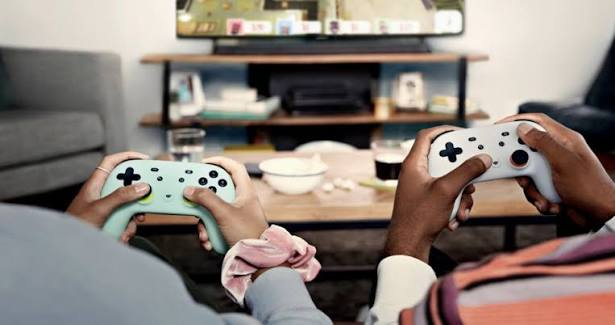

When I moved my console from a small monitor to a big living room TV, something felt wrong straight away. My shots landed late, my jumps felt sluggish and the controller seemed slightly disconnected from the screen. My internet hadn’t changed and my ping looked fine. The culprit was input lag, the delay between pressing a button and seeing the result on screen. It’s different from network lag, and it happens entirely inside your own setup. The good news is that most of it can be reduced with a few settings and smart choices. Here’s where that delay comes from and how I fixed it.
Input Lag vs Ping
People often blame every delay on their internet connection, but there are two separate problems:
- Ping is the time data takes to travel between your device and the slot online server. It affects how quickly the server learns what you did.
- Local delay is the time between your physical action and the change appearing on your screen. It happens on your device, controller and display.
You can have low ping and still feel sluggish because of local delays. This local delay even affects offline games, which makes it a useful test: if a single-player game also feels delayed, the issue is probably in your setup rather than your connection.
Where Delay Comes From
Total delay builds up across several steps:
- Your controller, mouse or keyboard sends the input. Wireless devices and low polling rates can add a little time.
- The game processes it, which depends on frame rate and engine design.
- The graphics card renders the frame. Low frame rates mean longer gaps between frames.
- The display processes the image. Many TVs apply picture enhancements that add noticeable delay.
- The screen shows the change, affected by refresh rate and pixel response time.
Each step might only add a few milliseconds, but together they can become noticeable, especially in fast games.
Display processing is often the biggest single source. That’s why my TV felt so much worse than my old monitor.
Display Settings That Help
Your screen settings are usually the easiest place to cut delay:
- Turn on game mode. Most modern TVs have a game or PC mode that switches off heavy image processing.
- Disable motion smoothing and similar picture enhancements.
- Use the right input port, since some TVs only offer low-latency modes on specific HDMI ports.
- Enable automatic low-latency features if your console and TV support them.
- Use higher refresh rates where possible, because frames arrive more often.
- Consider variable refresh rate if supported, which can reduce stutter without heavy delay.
Honestly, switching on game mode alone fixed most of my problem. The difference was obvious within seconds of pressing a button.
On PC, settings like frame rate limits, V-Sync and graphics options also play a role. V-Sync can reduce screen tearing but may add delay, so many competitive players prefer alternatives like variable refresh rate.
Controllers and Wireless Delay
Input devices contribute too, though usually less than displays.
- Wired connections generally offer the most consistent response.
- Modern wireless devices using dedicated receivers can be very fast and are fine for most players.
- Bluetooth can add a little more delay depending on the device and platform.
- Low battery on some wireless devices can cause inconsistent behaviour.
- Interference from other wireless devices may cause occasional hiccups.
For mice and keyboards, a higher polling rate means the device reports its position more often. Most gaming mice already use high polling rates, so this is rarely a major issue.
If you play competitively and notice inconsistency, trying a wired connection is a quick way to rule out the controller.
Testing Your Setup
You don’t need special equipment to spot problems. Try these checks:
- Compare offline and online games. If both feel slow, the problem is local rather than ping.
- Switch display modes and see if the feel changes.
- Try a wired controller or different input device.
- Check your frame rate with an on-screen counter if available.
- Test a different screen if you have access to one.
When buying a new display, look for reviews that measure input delay. Many reviewers test it specifically, and numbers vary a lot between models.
FAQ
What is input lag in gaming?
It’s the delay between pressing a button or moving a mouse and seeing the result on screen, caused by your device and display.
Is input lag the same as ping?
No. Ping is network delay to the server, while this delay happens locally in your controller, system and screen.
How do I reduce delay on a TV?
Turn on slot gacor mode, disable motion smoothing and image enhancements, and use the TV’s low-latency HDMI port if it has one.
That sluggish feeling isn’t always your internet’s fault. Check your display mode, trim heavy picture processing and make sure your controller connection is solid. Fixing input lag can make a game feel crisp and responsive again, and you might find your aim was never really the problem.